Lesson 1 of 8Need help? Book a call
Install the Claude desktop app
Here's what you do
- Go to claude.com/download.
- Click macOS or Windows to download the installer.
- Open the downloaded file and install:
- Mac: Drag the Claude icon into your Applications folder, then open it.
- Windows: Run the installer, then open Claude from the Start menu.
- Sign in, using the exact account your paid plan is on ($20 is enough to start).
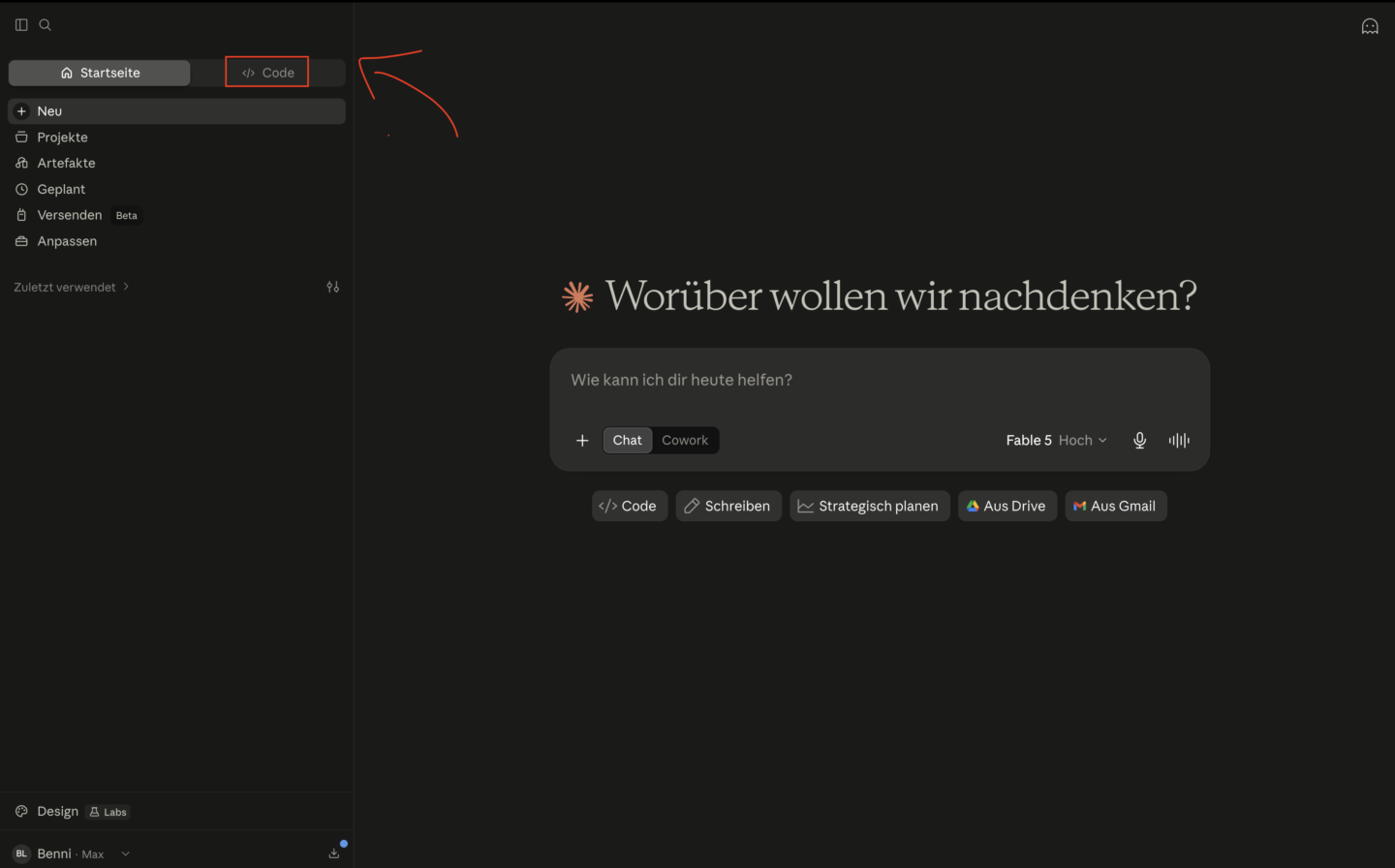
- Click "Code" at the top left of the app's sidebar. That's the part of the app that can work with files and run commands on your computer. In the input field, you choose that Claude works locally on your computer and in which folder. For now, your Desktop or your home folder is fine. We'll set up the proper project folder in lesson 2.
A word on billing
In the app, everything runs through the account you're signed in with, so through your paid plan. There's one exception, in case you ever use Claude Code in the Terminal instead of the app later on: if someone at some point stored an ANTHROPIC_API_KEY on your computer, Claude Code bills through that key instead of your subscription. That can cost money without you noticing. If you've never heard of this term, you're very likely not affected. We'll check it automatically in lesson 5.